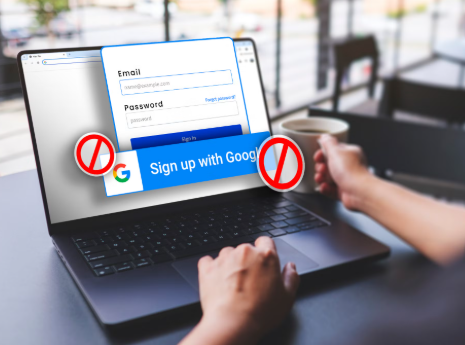
Even if a web site enters the right password, it may ask for another sign in. The preceding session could have been timed out, the browser may have cleared out information for recognizing it, or the service might need further verification of identity after changes in access conditions.
The timing helps separate these causes. A prompt after leaving a tab untouched points toward a different explanation from one appearing every time the browser closes. Before changing a working password, it helps to establish what happened between the successful sign-in and the next request.
A saved password does not keep a session open
A password manager stores credentials so they can be filled in later. A session is the website’s way of recognizing an authenticated visit across page requests. These functions are separate, even when both make access feel automatic.
Many websites use a browser cookie containing a session identifier. The browser sends it with later requests, allowing the service to recognize the session. If that identifier is missing or the session is no longer valid, the website may ask for authentication again.
For someone returning to an entertainment account through desi betting login, an automatically filled password can make the new prompt seem unnecessary. Autofill prepares credentials for submission; it does not prove that the previous session remains active.
Saving a password therefore cannot determine how long Slot Desi, or any other service, keeps a visitor signed in. That duration depends on the service’s own rules and how the browser handles its session data.
Why websites end sessions after inactivity
An inactivity timeout ends access after a period without qualifying activity. This limits how long an unattended account remains available. The interval depends on the service and may differ between account functions.
An open tab is not necessarily evidence of continued activity. Reading a page without sending another request may leave the server with no indication that someone is still there. Some pages send background requests, but whether those extend a session depends on the implementation.
There can also be a maximum session lifetime. Unlike an inactivity timeout, that limit can require another sign-in even during continued use. Repeated prompts at roughly consistent intervals may therefore reflect a service rule rather than a rejected password.
The distinction is practical: leaving a page open cannot guarantee continued access, and repeated clicks are not a reliable way to override a session limit.
How browser settings affect your next visit
Private browsing creates a separate browsing context. In Chrome, cookies and site data from an Incognito session are removed when all Incognito windows close. Returning in a new private session can therefore require another sign-in, despite a successful visit earlier.
Regular browsing can produce similar symptoms if site data is deleted on exit. Manually clearing cookies can also remove the identifier that helped a website recognize the signed-in browser. That operation does not necessarily delete a password saved in the password manager.
If you’re continually having to log out of your account, cookie restrictions might be worth investigating. Blocking of cookies required for the functioning of the site may cause problems. For some sign-in arrangements, restrictions on another domain could also impact. This varies by site.
When changing a password, complete these 5 checks:
- Verify if the browser and profile are opened (and if it is a private window)
- Pay attention to if it requires a password to be entered after inactivity, after closing the browser, or after continued use.
- Check the permissions for cookies and any settings that would clear site data when you leave.
- Compare the behavior of other updated browser in the same connection.
- See if another device logged in prior or if the connection has changed.
- Each browser maintains its own settings and site data. A problem confined to one browser suggests comparing those settings before treating the password as the cause.
What changes when you switch devices or connections
Opening the same account on another device generally creates a separate session. Syncing saved passwords between devices does not mean that both browsers share an authenticated visit.
Some services allow several simultaneous sessions. Others limit them or replace an earlier session when another sign-in occurs. If one device loses access immediately after another signs in, the service’s session policy is worth checking.
A change in connection can matter, too. Certain services use information about the device, network, or location when deciding whether another authentication step is appropriate. Switching between Wi-Fi and mobile data may coincide with such a check, but it does not universally trigger one.
A network interruption can also prevent a page from loading without ending the account session. Recording whether the page shows a connection error or an actual sign-in form helps avoid confusing the two.
What to check before resetting your password
A successful sign-in followed by a later prompt gives a different clue from a password rejected immediately. If the existing password still works, compare the interruption with the browser and connection checks above before starting account recovery.
If the sign-in screen continues to appear, provide support with a brief description of what happens immediately prior to the Sign In screen appearing. If the password doesn’t work on the next try, say so and if the same problem occurs in another browser, say so. Include the device, browser version, time of interruption and any errors. Those details provide support with a particular thing to explore. Avoid sending passwords, one-time codes or session cookies in the body of the message.
